
You can also find this guide online. Scan the code with your phone, or type the address:
zuboklik.cz/jak-se-objednat?language=en
Guide for patients
How to book a dentist appointment online
We show you step by step, screen by screen. It works on a phone and on a computer.
Zuboklik is a booking system for dental offices. You can book online with a dentist who uses it and who already has your patient record. You can still book by phone as before.
What you need
Three things. Nothing to install and no password to remember.
A dentist using Zuboklik
You book online where you already have a patient record. A completely new patient is registered by the office over the phone.
Your birth number
It is on your health insurance card. Type it without spaces; the slash is optional. Did the office give you a dental number starting with #? That works too.
Your mobile phone
An SMS with a code is sent to it – to the number the office has in your record.
Did the office give you a link or a QR code, for example in the waiting room? Use it. After signing in it takes you straight to your dentist and you skip choosing the office.
Booking step by step
The pictures show what the screens look like. Names and details on them are made up and may differ slightly at your office.
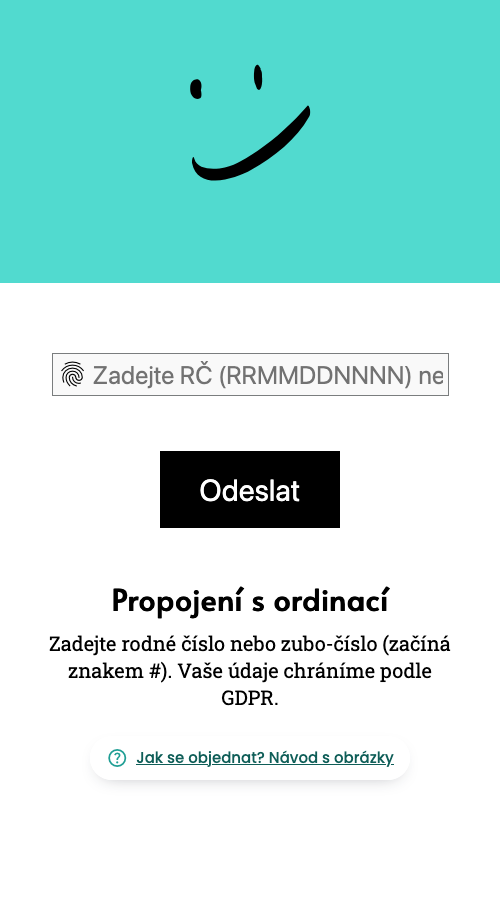
1. Type your birth number
At the top of every page on zuboklik.cz click Book Appointment. Type your birth number into the field without spaces and click Submit.
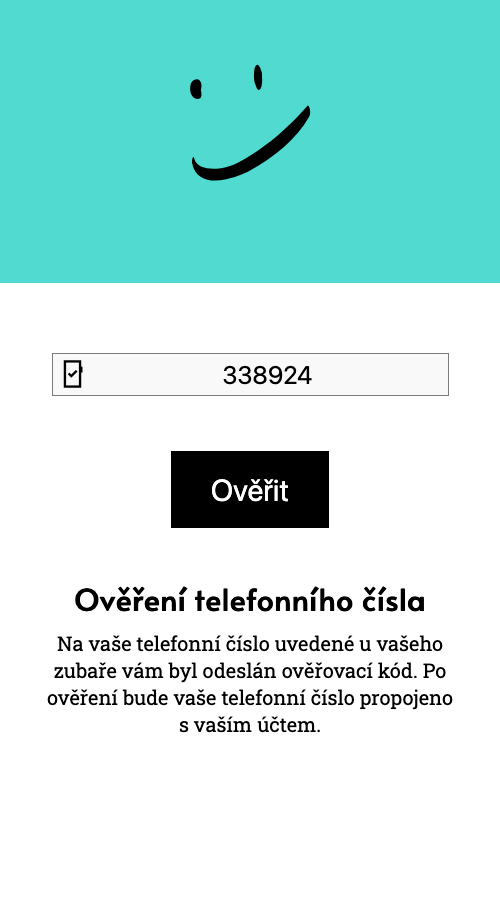
2. Copy the code from the SMS
In a moment you receive an SMS with a six-digit code. Type it into the field and click Verify.
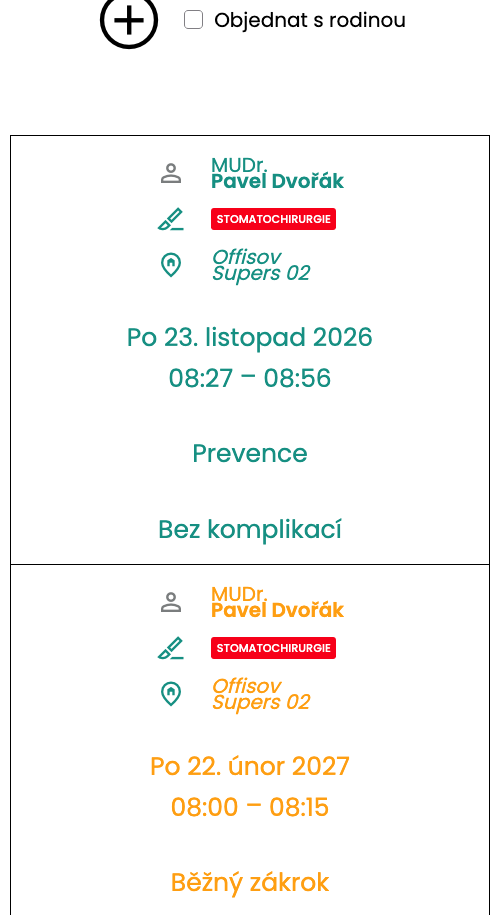
3. Click the big plus
You see an overview of your appointments. Start a new one with the plus button.
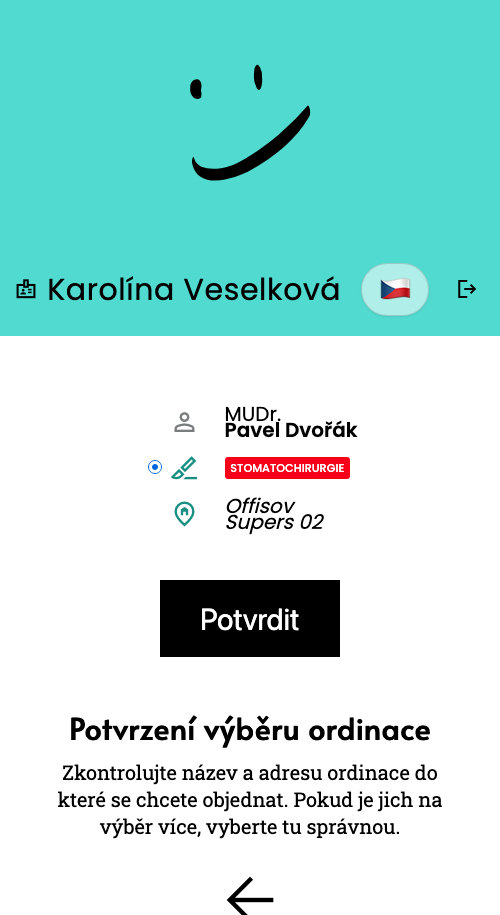
4. Choose your dentist
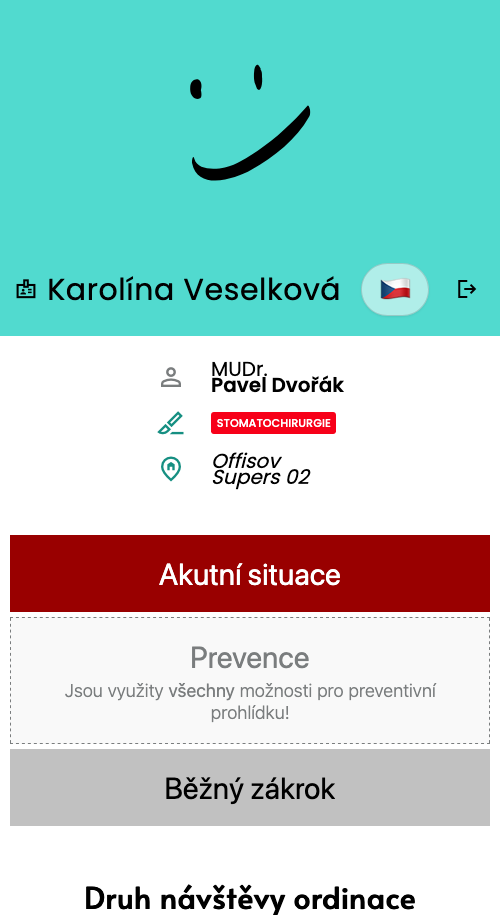
You see the doctor's name and the office address. Do you see several doctors or a dental hygienist? Each has a row of their own. Pick the one you want to book with and click Confirm.
5. Choose why you are coming
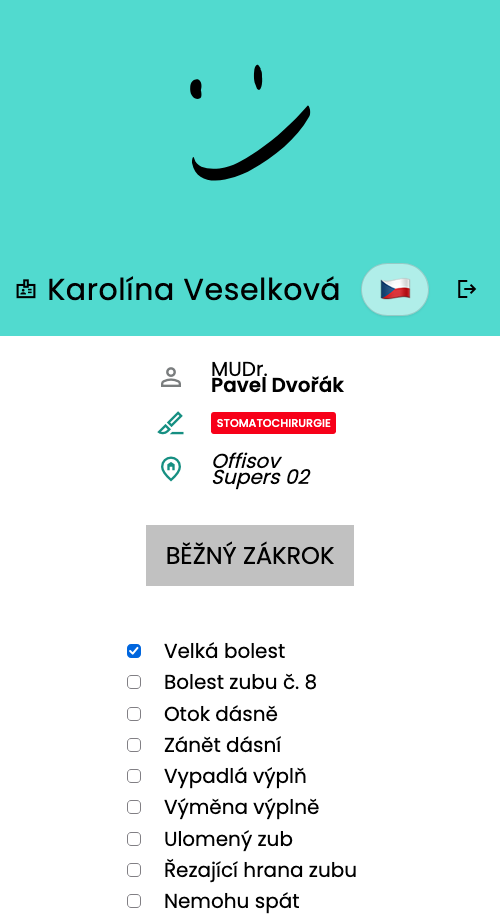
For example Prevention, Emergency or Common Procedure. Just click one button. Which buttons you see is set by your office.
A grey button means this visit cannot be booked right now, for example because you already have one booked.
Severe pain, swelling, fever or an injury? Do not wait for a free time on the web – call the office, or the dental emergency service outside office hours. If a life is in danger, call 155.
6. Tick what troubles you
That way the office knows in advance what you are coming with and offers a long enough slot. Nothing troubles you? Tick No complications. Then click Submit.
7. Click a time that suits you
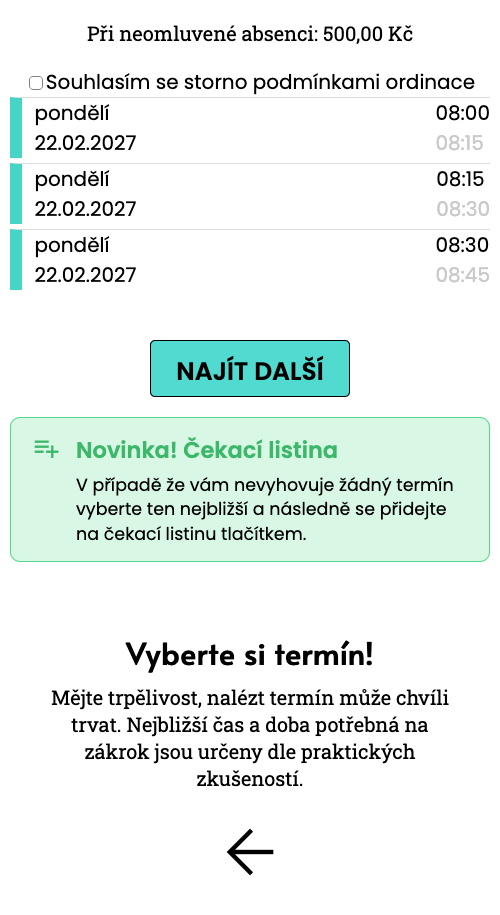
You see the nearest free times. Show more with the Find more button or by clicking a day in the calendar. As soon as you click a time, the appointment is yours.
Some offices charge a fee when a patient does not come and does not let them know. Then you see the amount here and first tick that you agree with it. Only then do you choose a time.
8. Done, you are booked
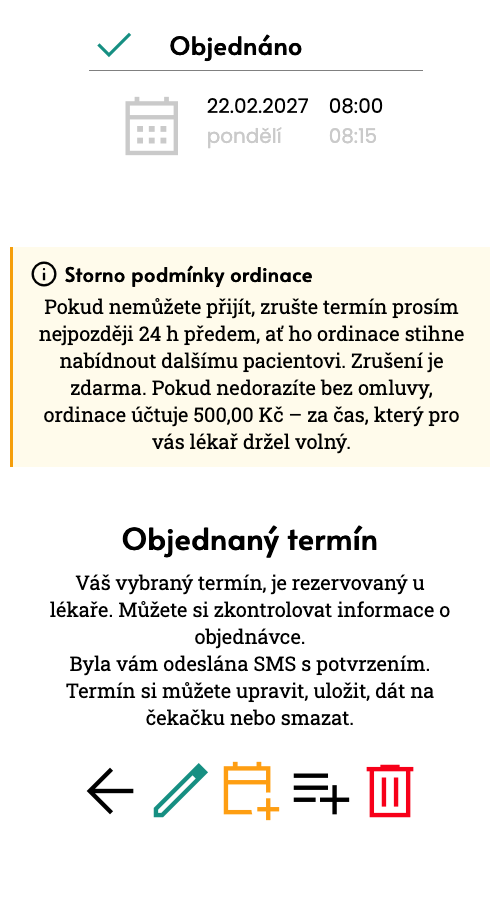
The appointment is in the doctor's calendar. Save it to your phone with the calendar icon. If the office has it switched on, you also receive a confirmation SMS.
Made a mistake? Change the appointment with the pencil or cancel it with the bin.
When plans change
You can find your appointments again at any time: on zuboklik.cz click Book Appointment. In the overview open the appointment you want to change.
You want another time
Click the pencil and choose a new time at the same office. Moving it through Zuboklik costs nothing. Then save the appointment to your phone's calendar again.
You cannot come
Click the bin. Cancelling through Zuboklik costs nothing. Please cancel as early as you can, so someone else can get the slot.
You want to come earlier
Join the waiting list from your appointment. When an earlier slot frees up, the office can offer it to you by SMS. You accept it with one click. Not for preventive check-ups.
You book for your family too
In the overview tick Book with family. A family member needs a record at the same office and confirms the invitation once by SMS. Then you see their appointments too and can change them.
Reminder
If the office has it switched on, you receive an SMS reminder two days before the visit.
No-show fee
Some offices charge a fee when a patient does not come and does not let them know. You see the amount already when booking. Whoever cancels pays nothing.
When something does not work
It says the birth number does not exist in the database
The office does not have you in its records yet, or has a different number in your record. Call the office. They will add you and then it will work.
I did not get the SMS with the code
The code goes to the number the office has in your record. It may be the number of someone in your family. Wait a minute and try again, at most three times a day. Do you have a new number? Tell the office.
It says „Online booking is not available“
Your office does not use online booking. Please book by phone.
I have a toothache. When can I get in?
Choose Emergency and tick what troubles you. You see the nearest free times the office offers. If none suits you, call the office. With severe pain, swelling or an injury, call straight away.
Do I have to type the code every time?
Usually not – you stay signed in on the same phone or computer. Next time you can switch on signing in with your fingerprint or face. Your fingerprint or face never leave your phone. On someone else's or a shared computer, sign out with the icon at the top right after booking.
Why do you want my birth number?
It is how you are found in your office's records, which already have it in your record. How data is handled is described on the How we handle your data page.
Does it work in another language?
Yes. After signing in, switch with the flag at the top to Czech, Ukrainian or Slovak.
Who can help me?
Your office. They know you, have your record and can book you by phone too.
Will you give it a try?
If anything gets stuck, come back to this page or call your office.